

Appearance
EC Quote Shopify Installation
Follow these steps to add EC Quote to your Shopify site.
Choose Where EC Quote Should Appear
EC Quote can be placed on a dedicated quote page or inside another page where Shopify allows custom HTML.
If you are creating a dedicated page, common page names include:
Instant QuoteRequest a QuoteGet a Quote
Add EC Quote to a Page
- From your Shopify dashboard, go to Online Store -> Pages.
- Select Add Page in the top right corner, or open the existing page where EC Quote should appear.
- Before clicking into the Content textarea, find and select the
codebutton to change the textarea to HTML.
What does the code button look like?
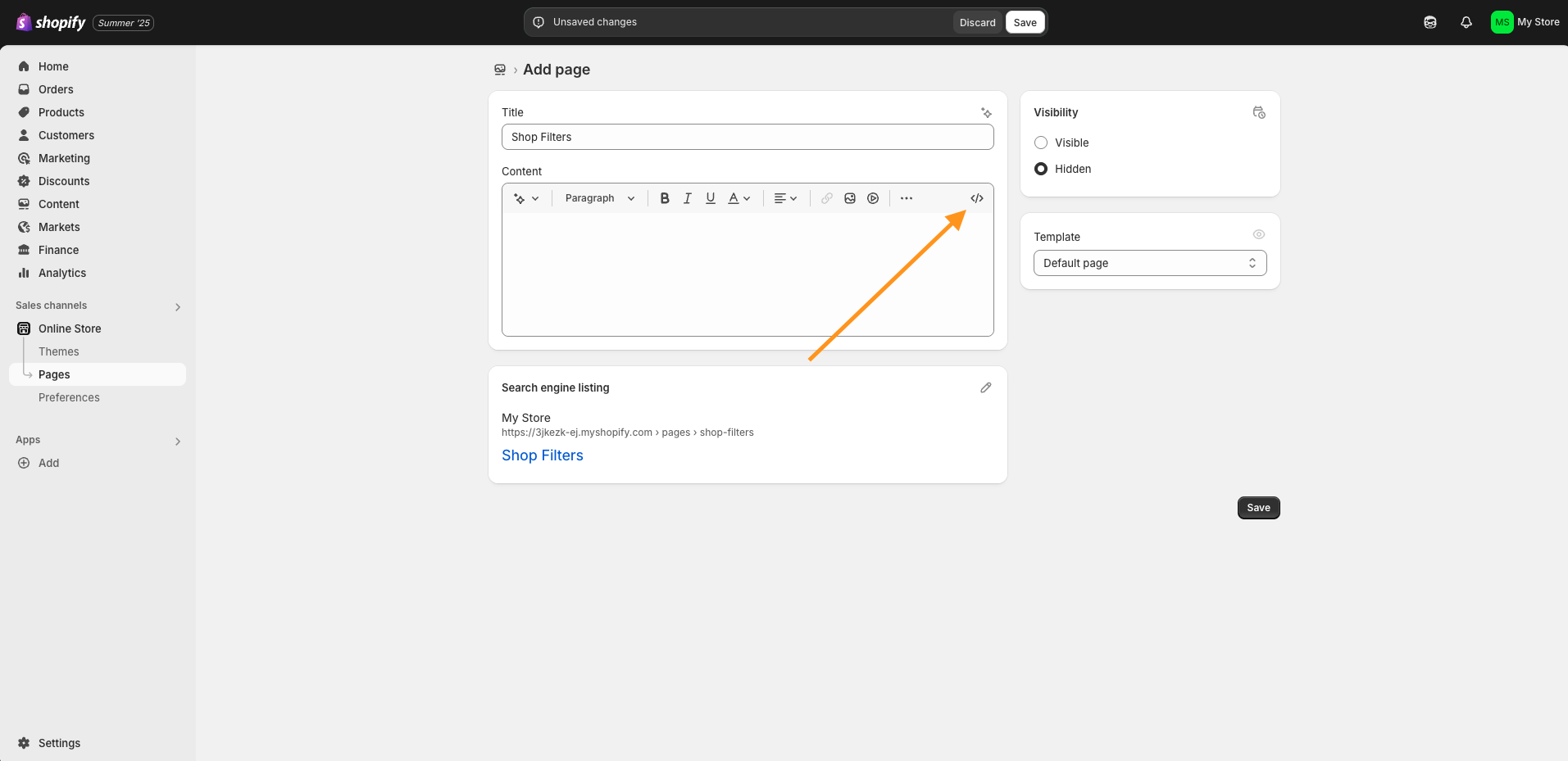
- Paste the following code into the Content textarea:
html
<script src="https://d1vc0si56f5gt.cloudfront.net/ff-plugin.umd.min.js"></script>

<ec-quote></ec-quote>- Change the page's Visibility from
HiddentoVisible. - Save your changes.
Add the Page to Your Site Navigation
If you created a new page for EC Quote:
- From your Shopify dashboard, select Content -> Menus.
- Select the menu you wish to add the page to. Typically, this is Main Menu.
- Select
Add Menu Item. - For the Label field, use the same name you gave your page, such as
Instant QuoteorRequest a Quote. - For the Link field, select
Pages->Your New Quote Page. - Save your changes.
Final Step: Publish and Check the Page
Visit the live version of the page.
If everything is installed correctly, EC Quote will show:
Instant Quote - Coming Soon!
If you do not see that message, please contact our support team and we will help review the setup.