

Appearance
Website Access
Sometimes our team may need temporary access to your website to help install EC Store or EC Quote, review script placement, adjust page settings, or troubleshoot caching and theme issues.
The safest option is to create a separate user account for eContractor support instead of sharing your own login. After the work is complete, you can remove that account.
WARNING
Do not email or text your personal website password. Create a new user account whenever possible, and send the invite to the email address provided by the eContractor team.
Before You Start
- Use the platform's built-in user, staff, collaborator, or admin invite tools.
- Give access only to the website that needs support.
- Choose the lowest permission level that still allows the work to be completed.
- Remove the support user after the installation or troubleshooting work is finished.
For most eContractor installation or troubleshooting requests, admin-level access is usually needed because our team may need to edit pages, add custom HTML, adjust script placement, review plugins, or update caching settings.
WordPress
Use these steps if your website is built with WordPress.
Which Role Should I Choose?
For EC Store or EC Quote installation help, choose Administrator unless the eContractor team tells you otherwise.
An Administrator can manage pages, themes, plugins, settings, and users. This is usually required when we need to place scripts, inspect page builders, or adjust caching plugins.
Other WordPress roles are more limited:
- Editor can manage site content, but usually cannot manage plugins, themes, or site settings.
- Author can create and manage their own posts.
- Contributor can draft posts, but cannot publish them.
- Subscriber can only manage their own profile.
If you are unsure, choose Administrator for temporary support access, then remove the account when the work is finished.
Add a WordPress User
- Log in to your WordPress dashboard as an administrator.
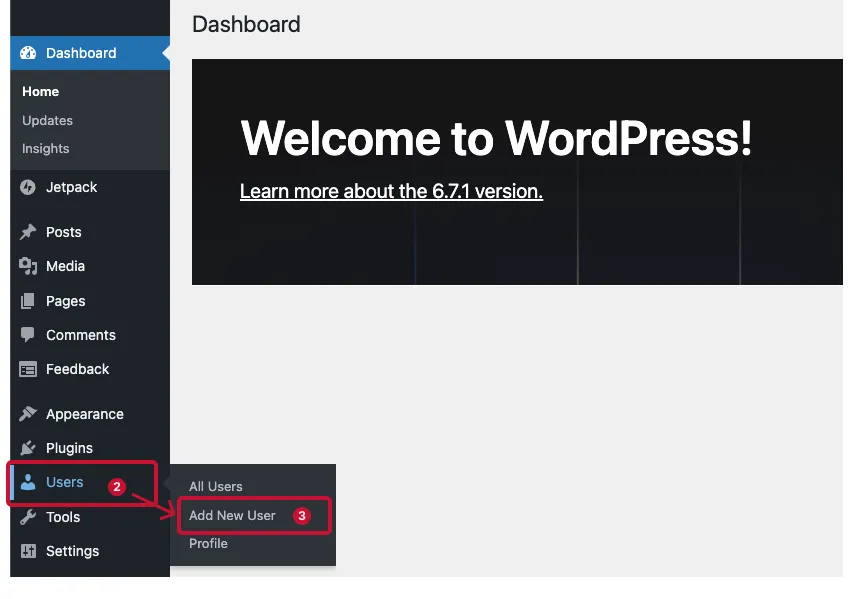
- In the left-hand menu, go to
Users->Add New.
What does that look like?
- Enter a username, such as
econtractor-support. - Enter the email address provided by the eContractor team.
- Make sure Send User Notification is checked so WordPress emails the invite.
- Set Role to
Administrator. - Select Add New User.
What does the new user form look like?
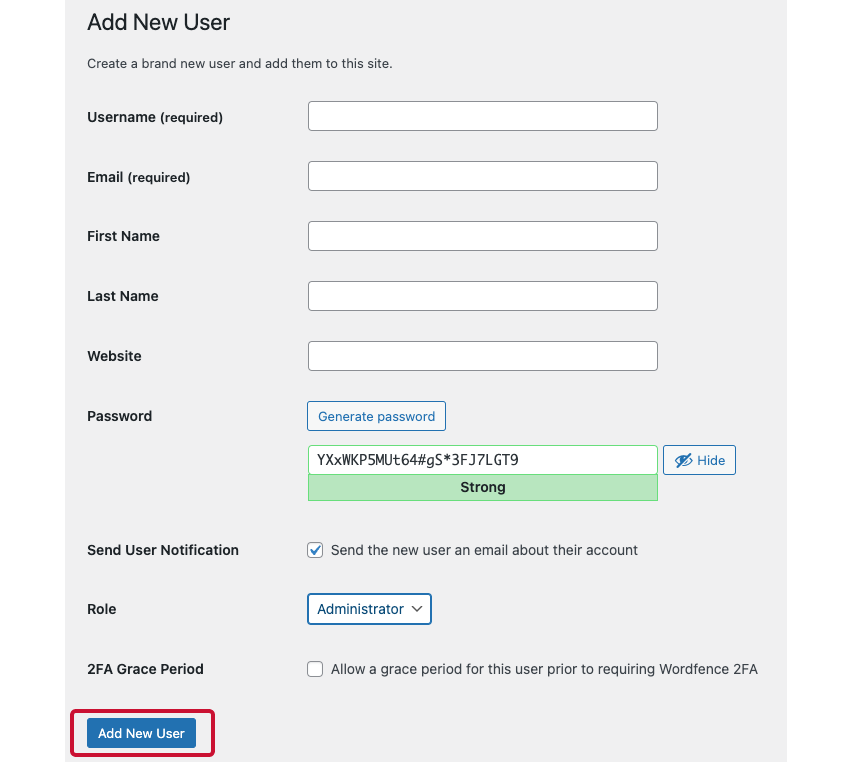
After the user is created, let the eContractor team know the invite has been sent. You do not need to send a password if WordPress sends the new user notification email.
TIP
If your WordPress dashboard looks different, the user settings may still be under Users, All Users, or Add New User. Some managed WordPress hosts customize the dashboard slightly.
Remove WordPress Access
When the installation or support work is complete:
- Log in to your WordPress dashboard as an administrator.
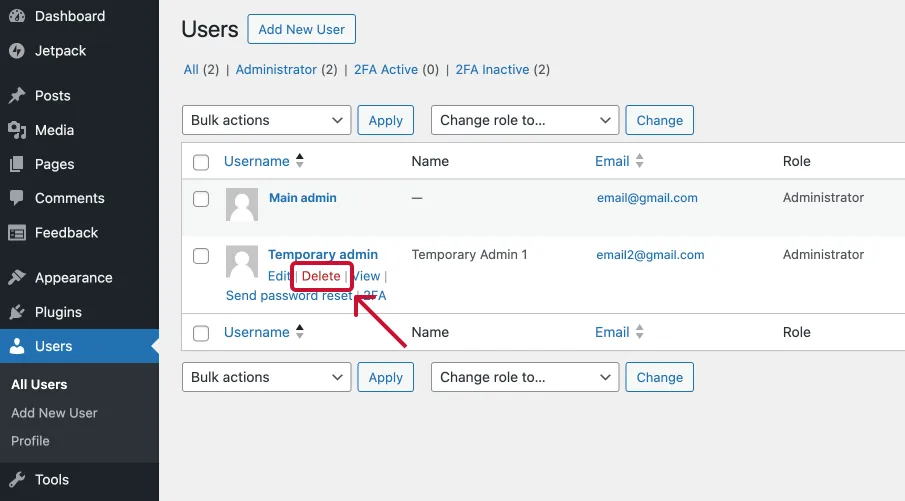
- Go to
Users->All Users. - Find the eContractor support user.
- Select Delete.
What does that look like?
- If WordPress asks what to do with content owned by that user, choose the option to attribute content to your own admin account.
- Confirm the deletion.
What does the confirmation screen look like?
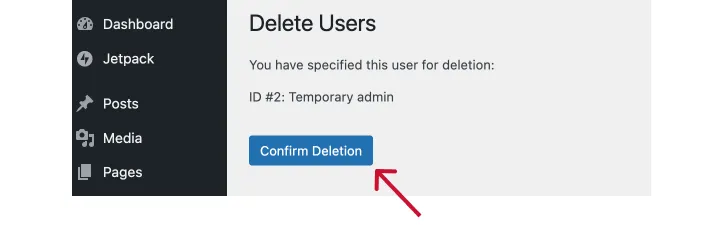
This removes the support user's ability to access your WordPress website.
Other Website Platforms
This page will continue to grow with platform-specific steps for Shopify, Wix, SquareSpace, Duda, and other website builders.
For now, use the platform's built-in collaborator, staff, contributor, or admin invite feature and send the invite to the email address provided by the eContractor team. If you are not sure which permission level to choose, contact our support team before sending the invite.