

Appearance
EC Quote SquareSpace Installation
Follow these steps to add EC Quote to your SquareSpace site.
Choose Where EC Quote Should Appear
EC Quote can be placed on a dedicated quote page, in a banner area, or inside a page section.
If you are creating a dedicated page, common page names include:
Instant QuoteRequest a QuoteGet a Quote
Add the Script to the Page
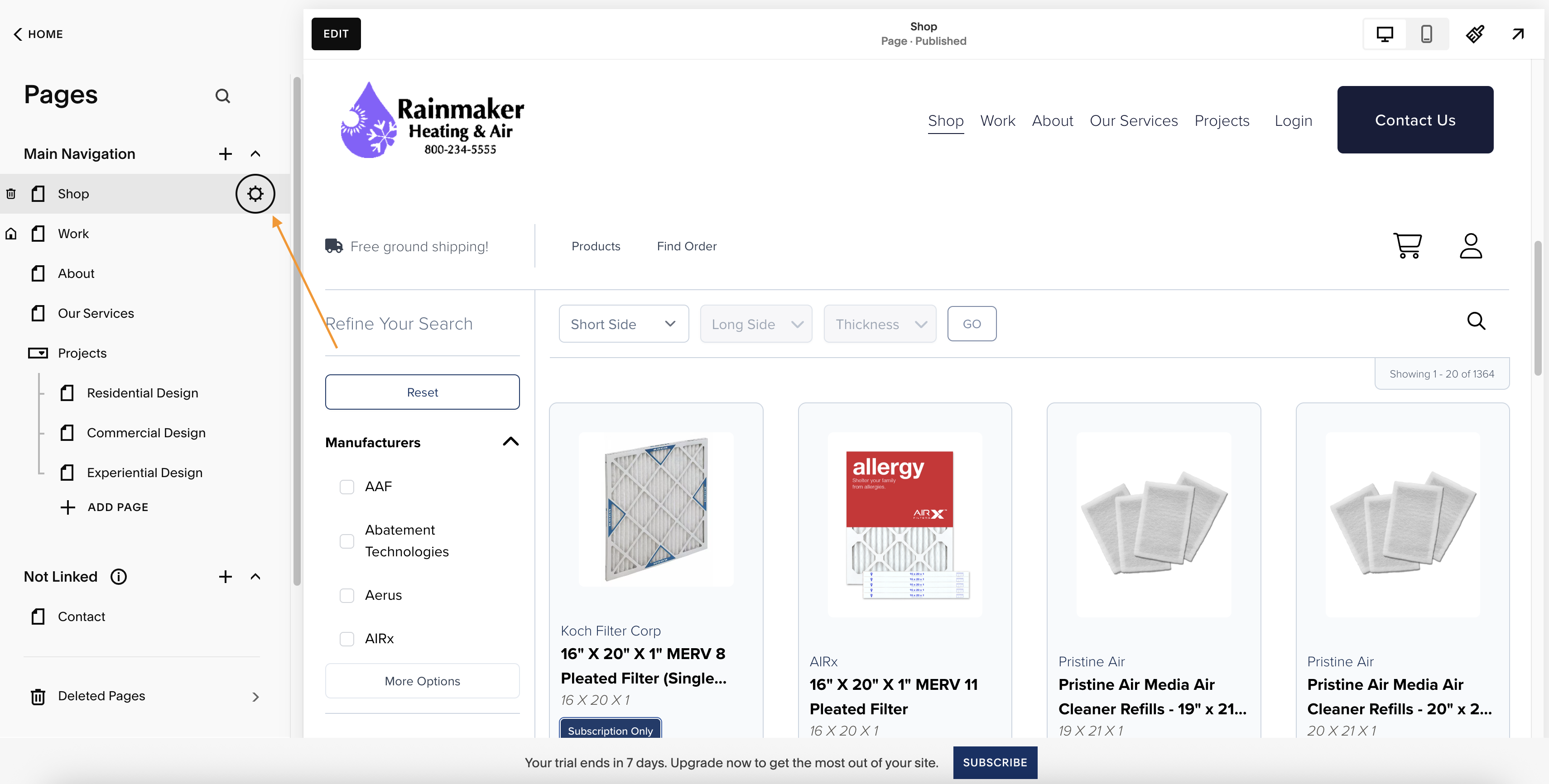
- From the main menu of your website, select Website -> Pages.
- Hover over the page where EC Quote should appear.
- Select the Settings Icon (gear) to open the
Page Settingsmenu.
What does it look like?
- From the Page Settings menu, navigate to the Advanced tab.
- In the
Page Header Code Injectiontext area, paste in the following script:
html
<script src="https://d1vc0si56f5gt.cloudfront.net/ff-plugin.umd.min.js"></script>What does it look like?
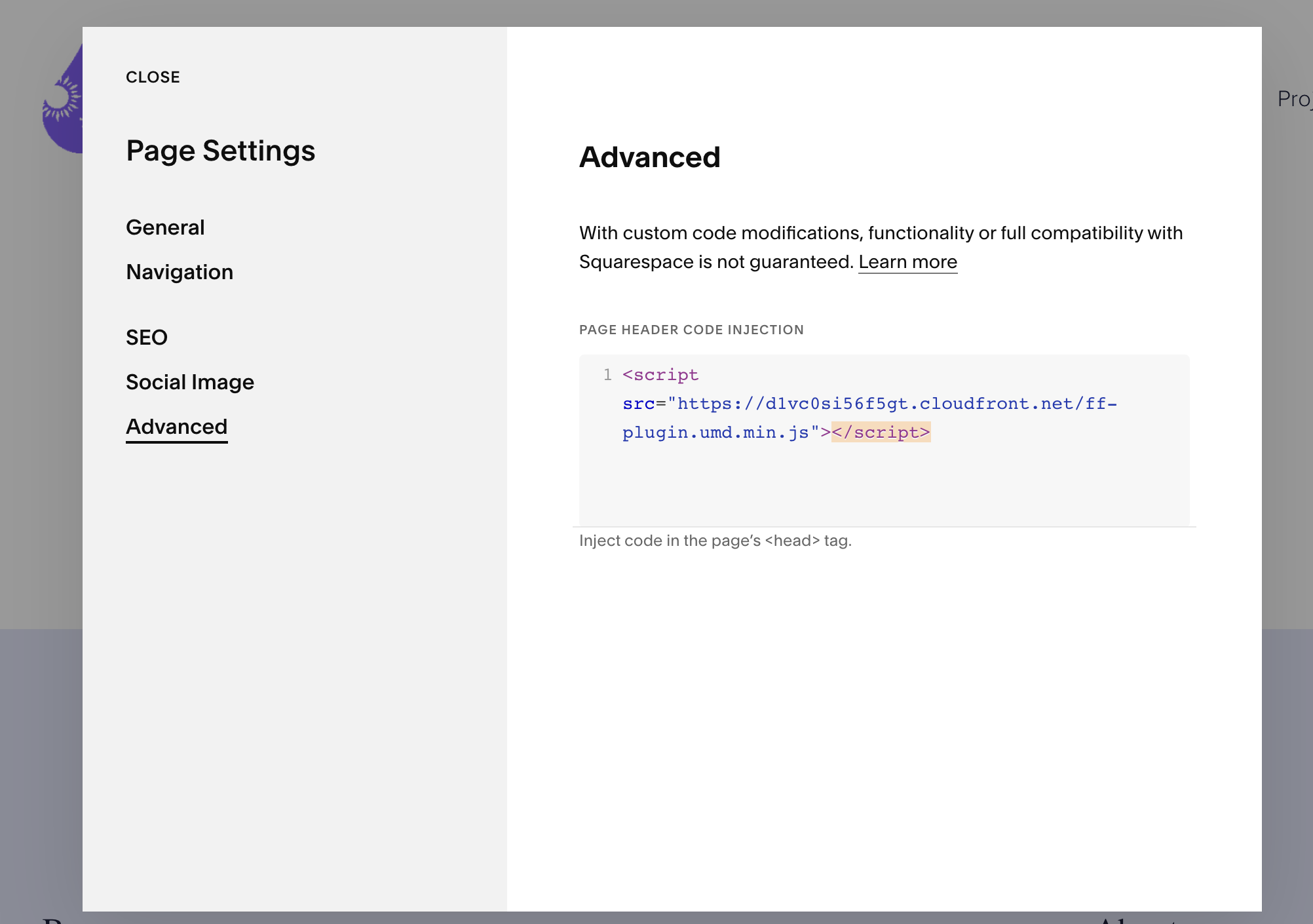
- After pasting in the script, click Save in the top-left of the menu.
WARNING
Unlike most other platforms, SquareSpace requires this script to go in the page's code injection area to ensure proper loading.
Insert EC Quote
- Edit the page where EC Quote should appear.
- Select Add Section, then choose a Blank Section.
- Within the section, click Add Block and select Code.
- Double click inside the code block to open the menu and paste the following code:
html
<ec-quote></ec-quote>TIP
You can move or resize the code block to fit the page section where you want EC Quote to appear.
- Click Save in the top-left of the page.
Final Step: Publish and Check the Page
Publish or update the page, then visit the live version of your site.
If everything is installed correctly, EC Quote will show:
Instant Quote - Coming Soon!
If you do not see that message, please contact our support team and we will help review the setup.
Still Need Help?
If you're unsure about any of the steps above, please contact our support team. We are happy to assist with the integration.